Mechanical Toy Generator | AI Transformation Toy Prompt Engine
Tus Resultados
Ver y administrar tus tareas generadas
Mira cómo funciona
Vista previa de los resultados que puedes crear
Esta es una demostración de lo que puedes crear con esta herramienta. ¡Pruébalo tú mismo creando una nueva tarea!
Create a Mechanical Toy Transformation Video in 4 Steps
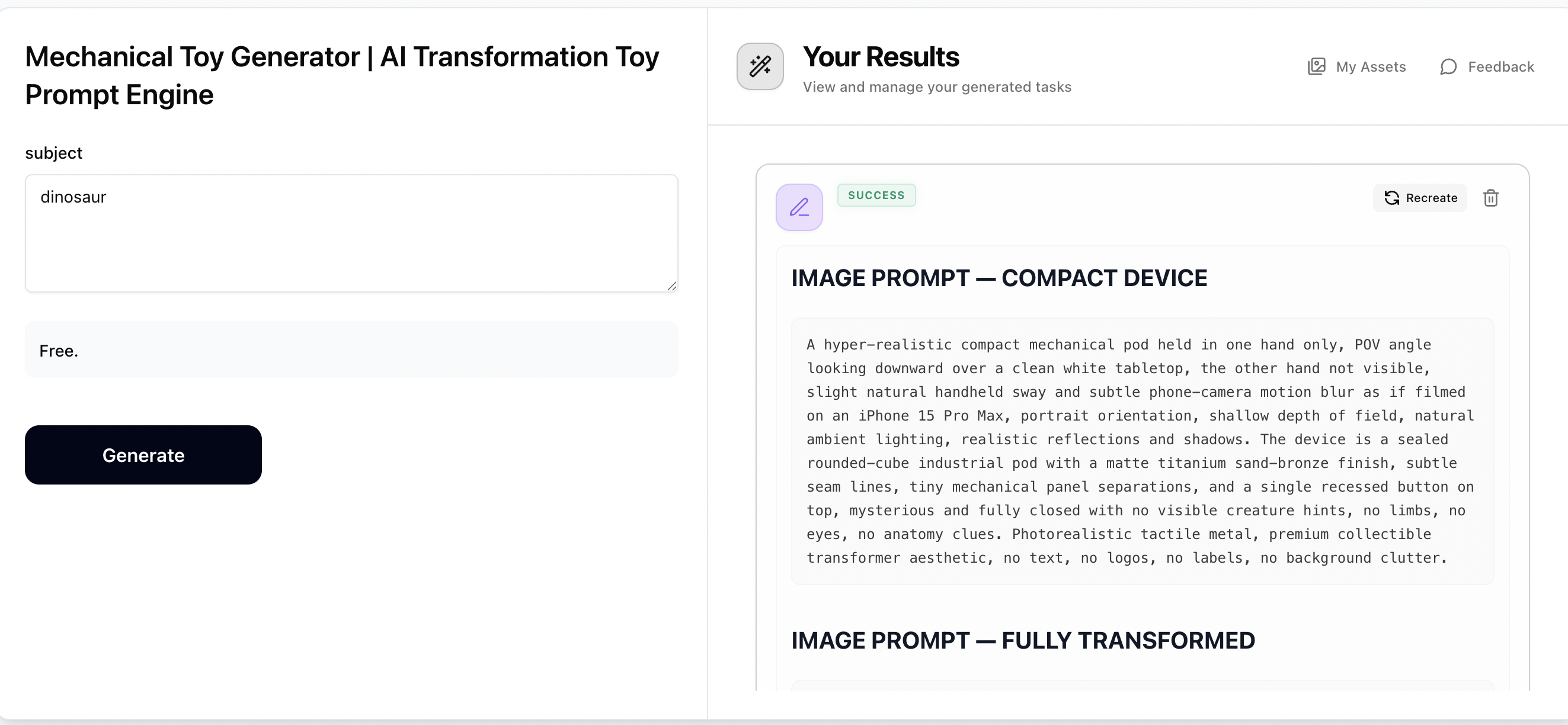
Step 1: Generate Prompts with Mechanical Toy Generator
Enter any subject — a creature, animal, vehicle, robot, mythical entity, or any visually interesting subject (e.g. Scorpion, Arctic wolf, Cyberpunk dragon). The generator will output a compact device image prompt, a fully transformed image prompt, and a transformation video prompt — all hyper-photorealistic and ready to use. Copy all prompts for the next steps.
Step 2: Create the Compact Device Image with Nano Banana 2
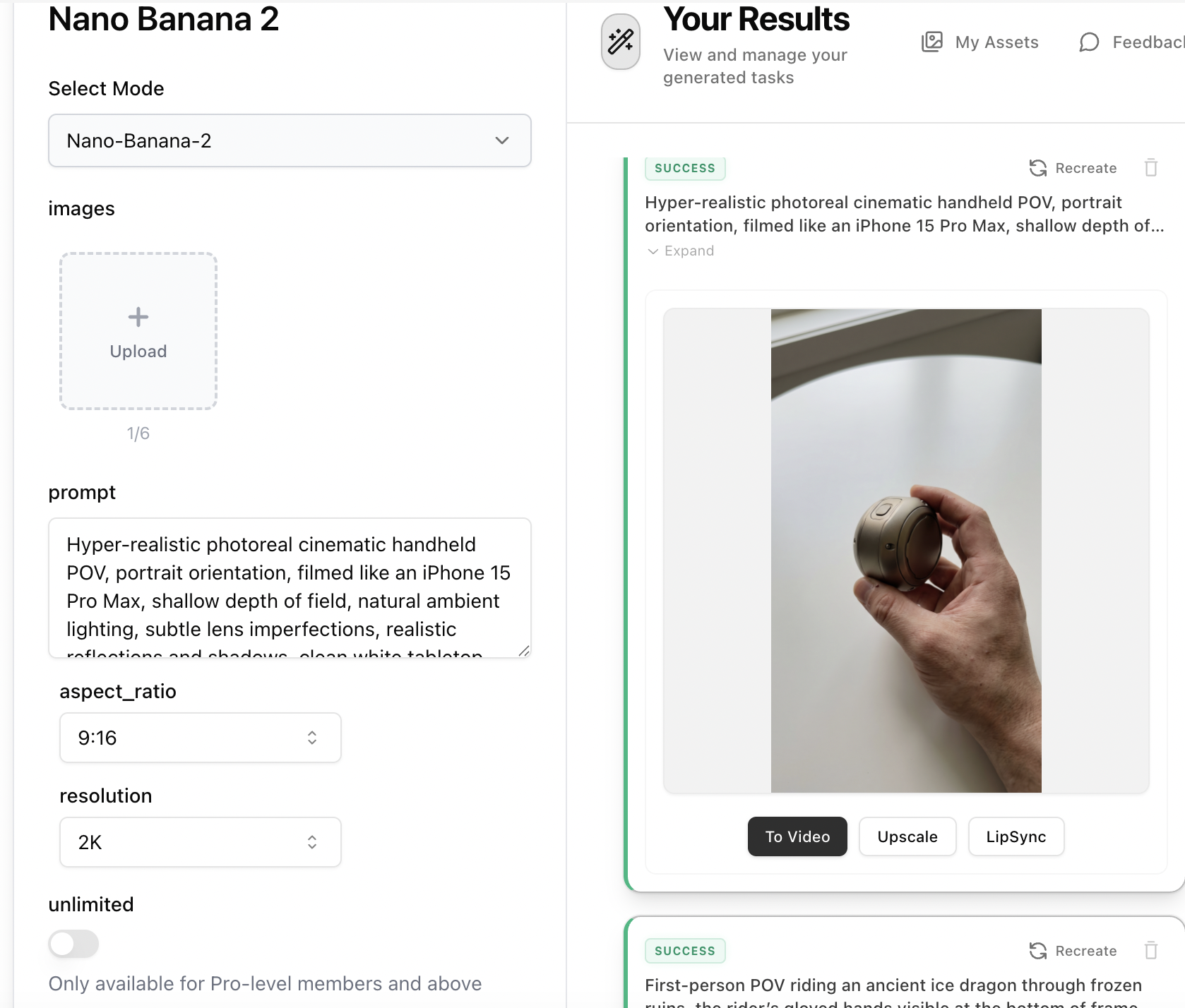
Open Nano Banana 2 and paste the 'Compact Device' prompt to generate the sealed mechanical pod held in hand. Set aspect ratio to 9:16 and resolution to 2K. This image will serve as your first frame — the mysterious sealed pod before transformation.
Step 3: Create the Fully Transformed Image with Nano Banana 2
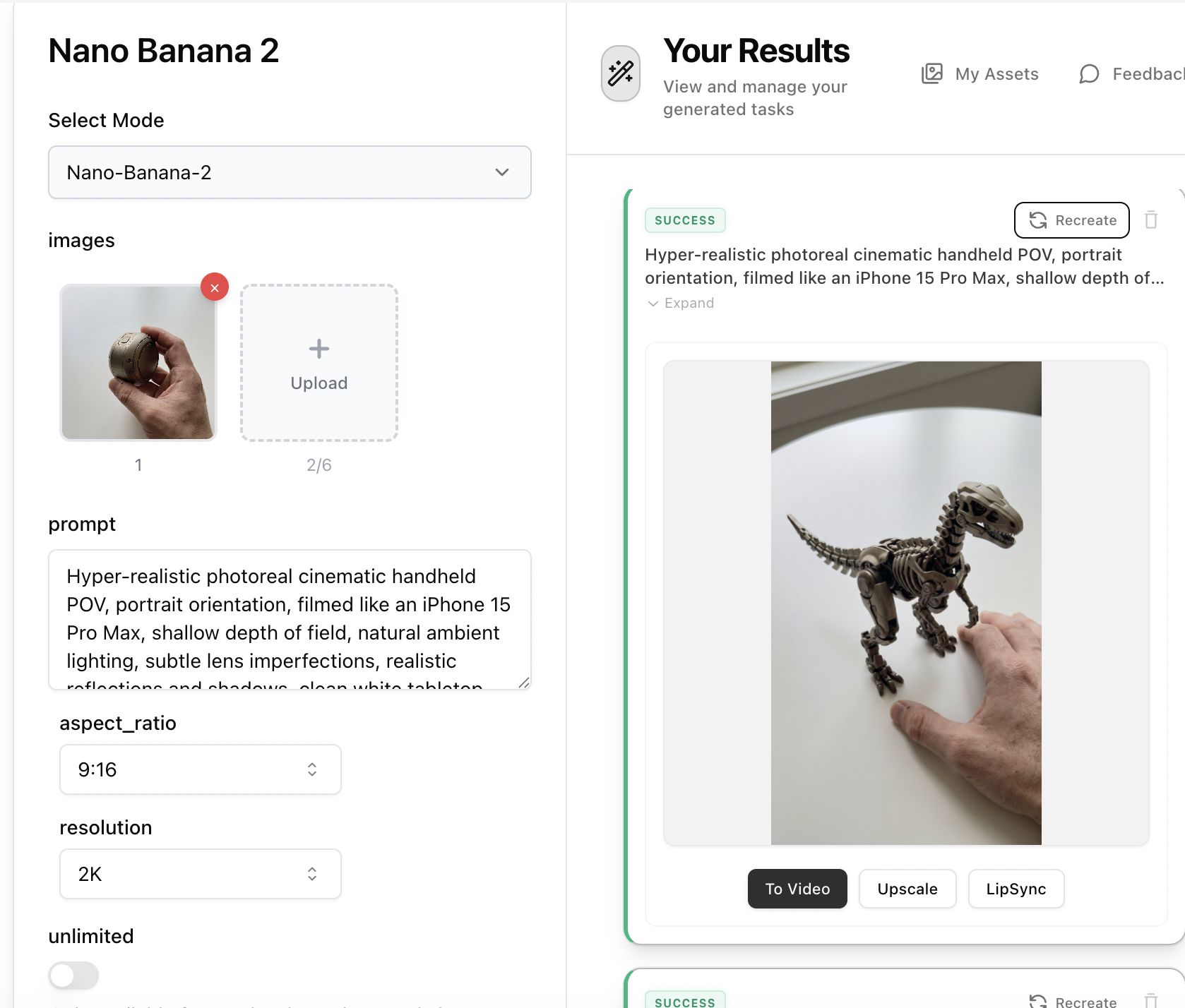
Open Nano Banana 2 again, upload the compact device image from Step 2 as a reference image, then paste the 'Fully Transformed' prompt. This ensures the transformed subject shares the exact same metallic finish and color palette as the compact device. Set aspect ratio to 9:16 and resolution to 2K. This image will serve as your last frame.
Step 4: Animate with Kling 3.0 Image to Video
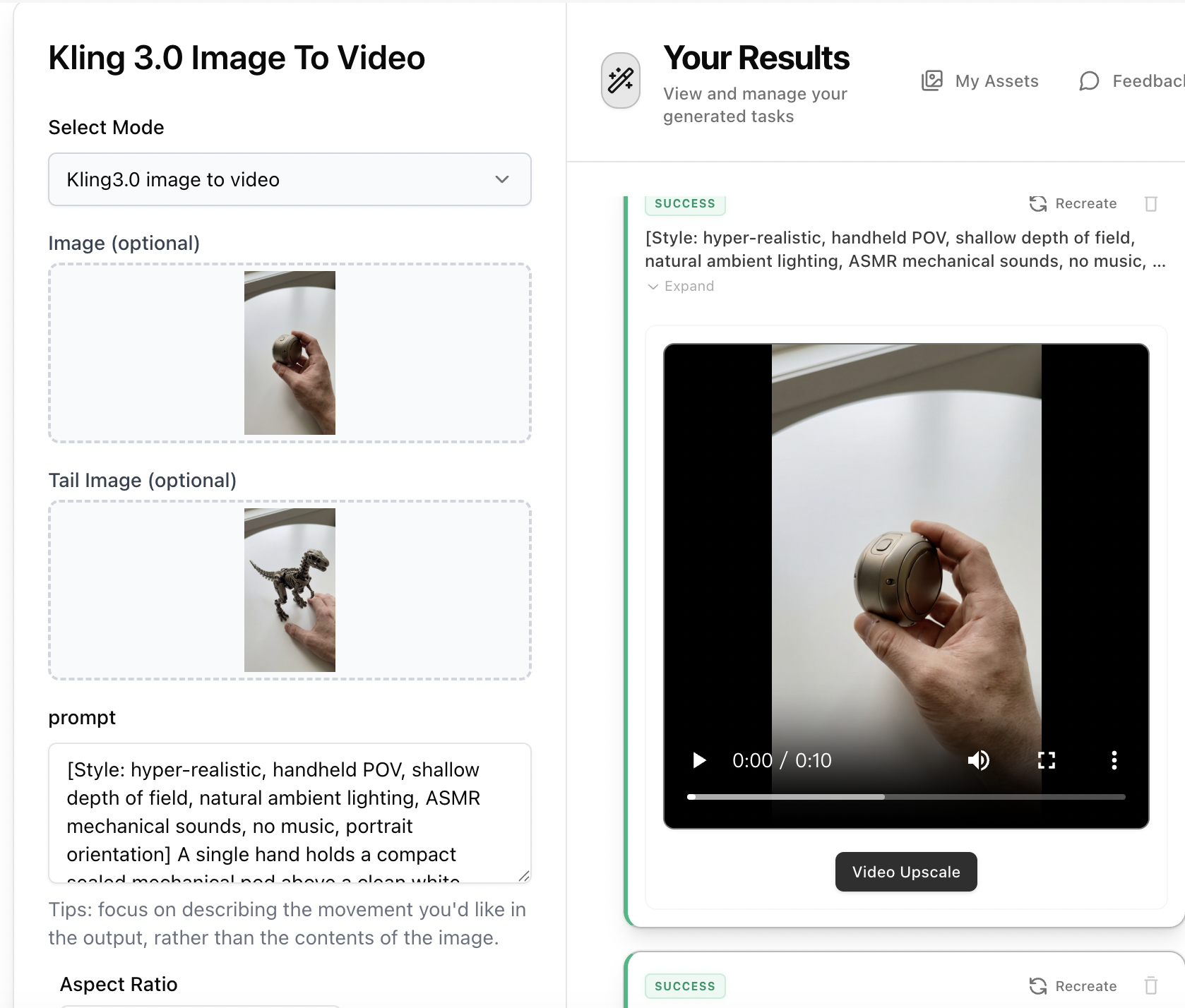
Open Kling 3.0 Image to Video, upload the compact device image as the starting frame and the fully transformed image as the tail image. Paste the 'Transformation Sequence' video prompt as your motion description. Select 9:16 aspect ratio, 8-10s duration, and Pro mode for the most cinematic mechanical unfolding result.